On this page

In the first post, I brought our family’s photos and videos into one local archive, organised by the day they were taken. Everything finally had a place.
But bringing 60,000+ files together also brought all the unfinished work together. Duplicates, screenshots, accidental videos, and several almost identical photos of the same moment. The folders were organised. Their contents still needed attention.
I needed a way to work through that archive without turning every session into a project. So I built Daddy, Cull!
It is a local photo and video organiser built around a simple routine: review today’s date across every year, keep what matters, and remove what doesn’t. “Culling” is just the photography word for choosing what to keep.
One date is a place to start
Opening a library with twenty years of photos gives you plenty to look at, but no obvious place to begin. Start at the oldest? The newest? The biggest folder?
Daddy, Cull! gives that decision a default. On 30 September, the Today page brings together photos and videos taken on 30 September in every year in the archive. 2016, 2019, 2023, and whatever else is there. That is the session.
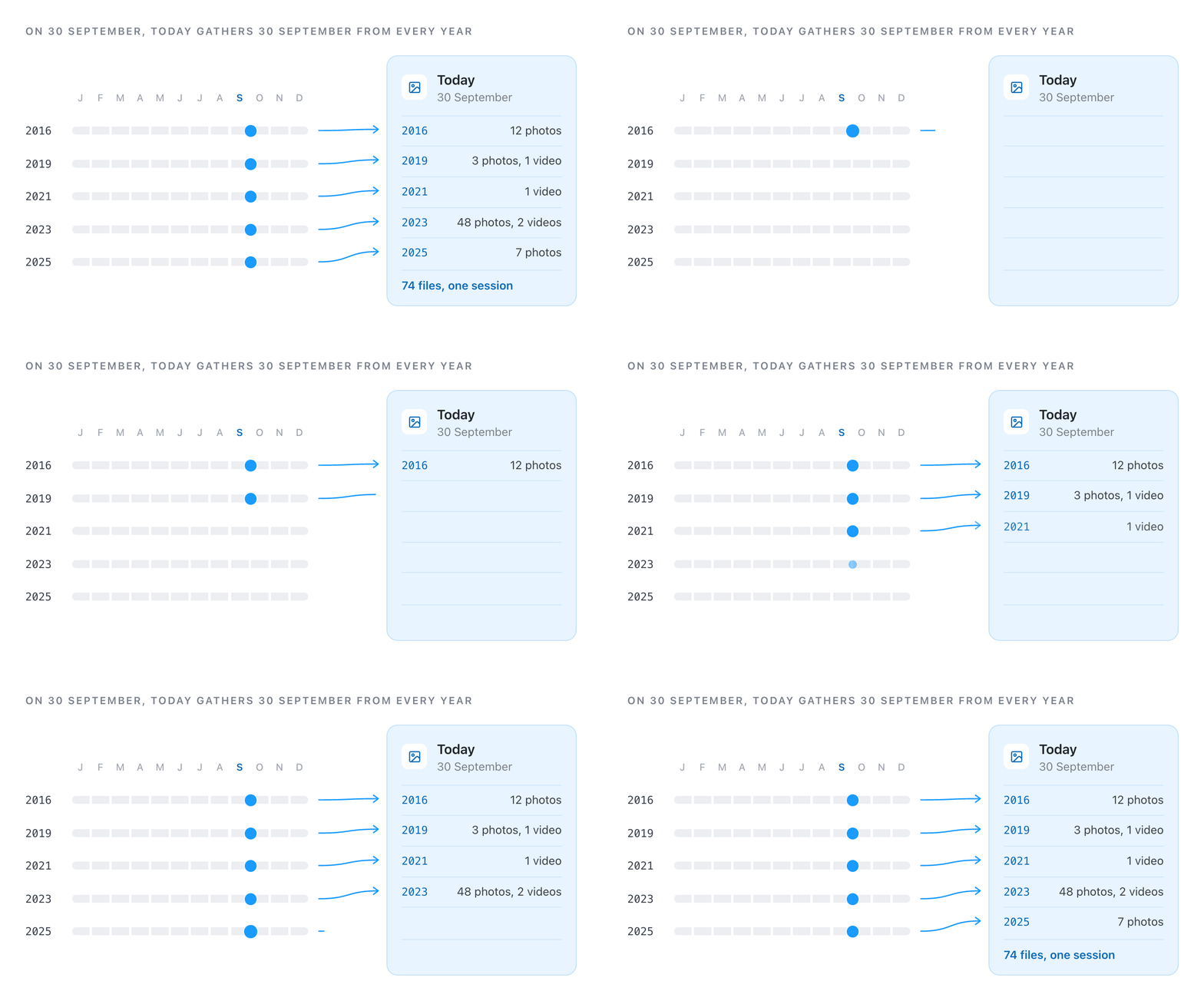
Review the files, make your choices, and mark the date reviewed. The Year calendar records your progress and shows how much still waits on other dates.
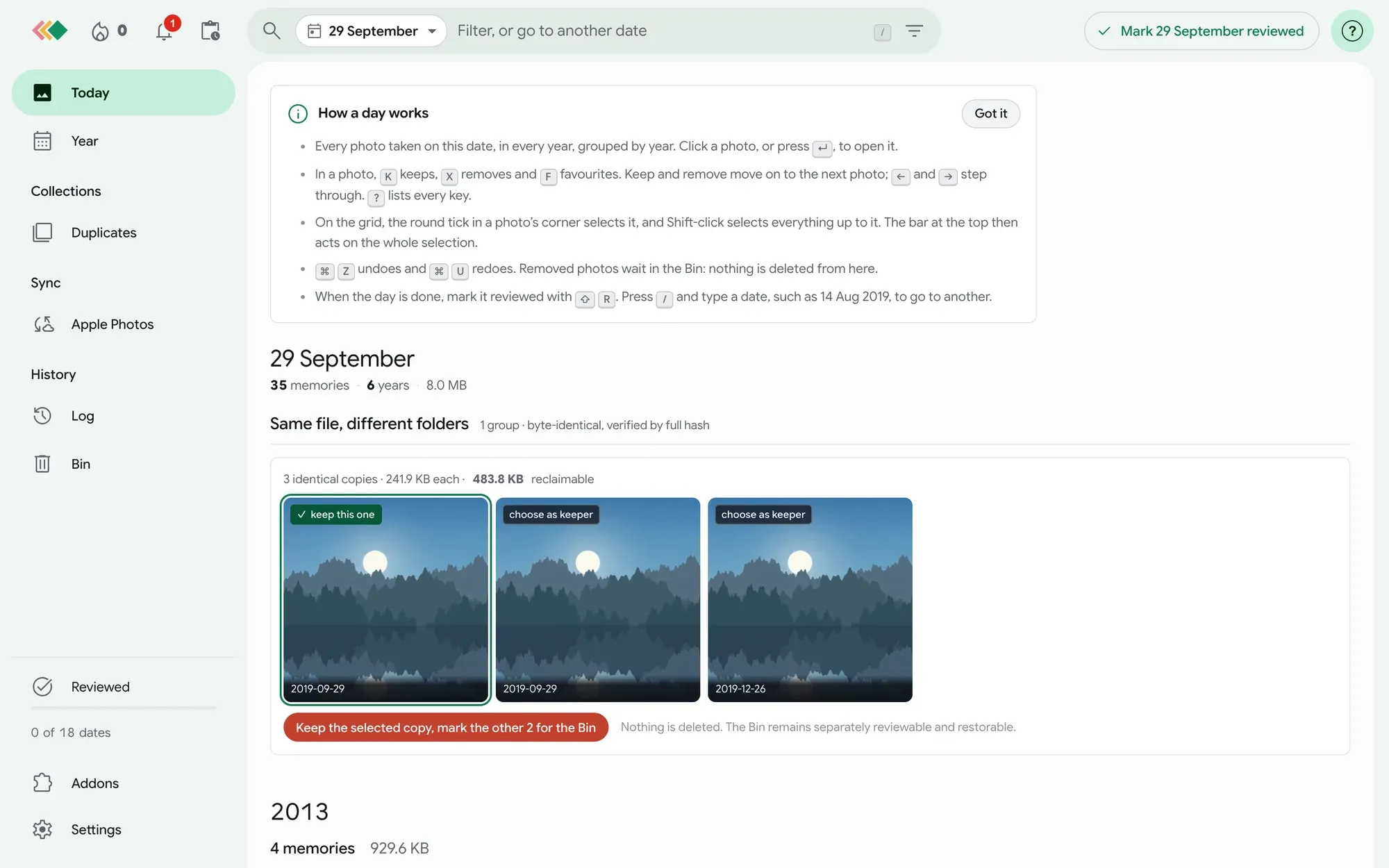
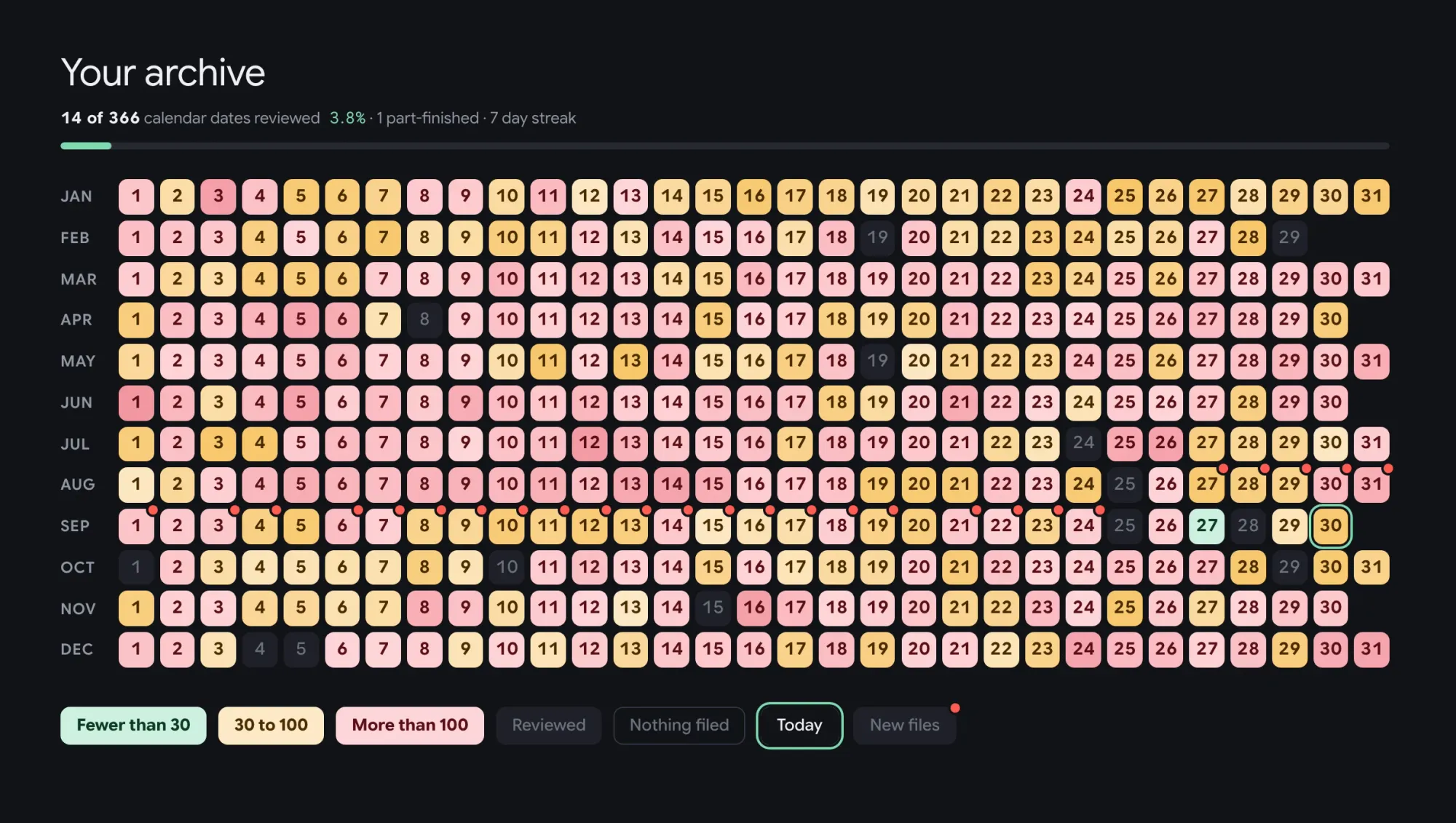
Some dates will have a handful of files. Others will have hundreds. The useful part is having a defined piece of work instead of an endless timeline.
It also gives the clean-up a reason to be enjoyable. Photos from different years sit beside each other. You get to revisit the memories while deciding which versions of them deserve to stay.
Make the decisions easy
The review itself needs to be quick. If choosing what stays takes several clicks each time, the interface becomes part of the backlog.
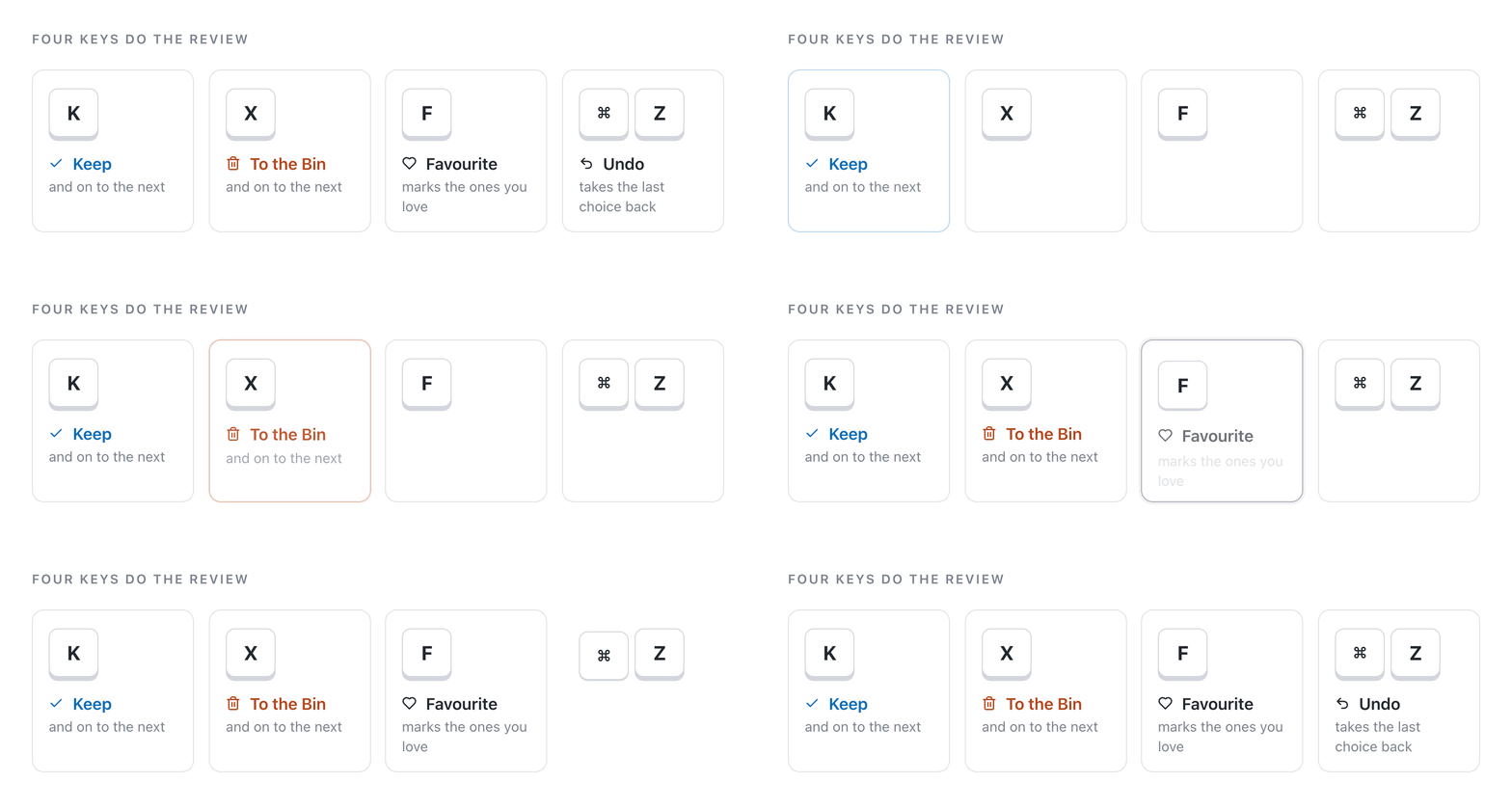
Daddy, Cull! puts photos and videos in the same review view, with simple keyboard controls:
Kkeeps an item.Xsends it to the Bin.Fmarks it as a favourite.
Made the wrong choice? ⌘Z takes it back.
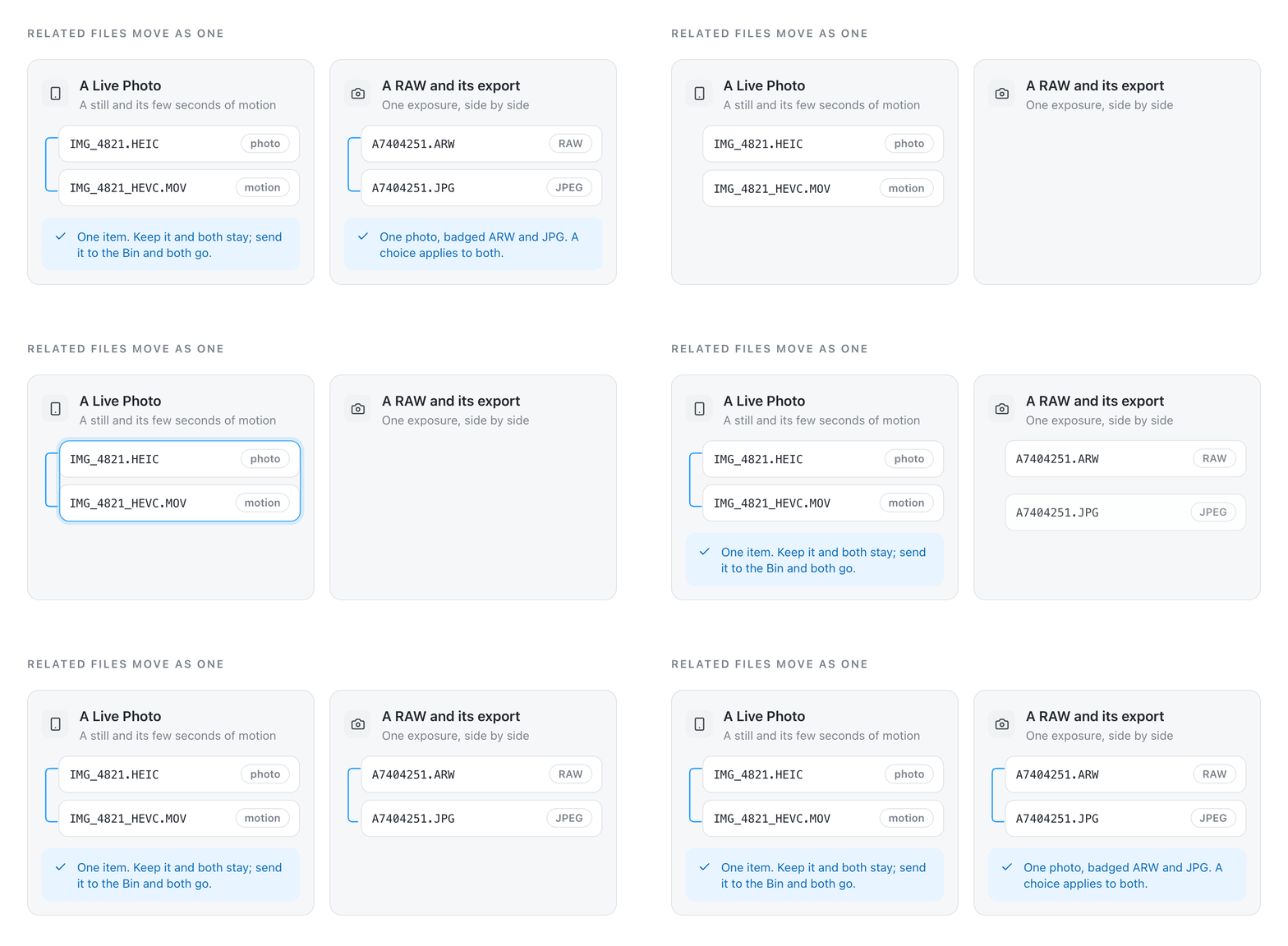
Related files stay together too. A Live Photo has both an image and a video. A camera shot may have a RAW file and an exported JPEG. Those relationships matter when deciding what to keep.
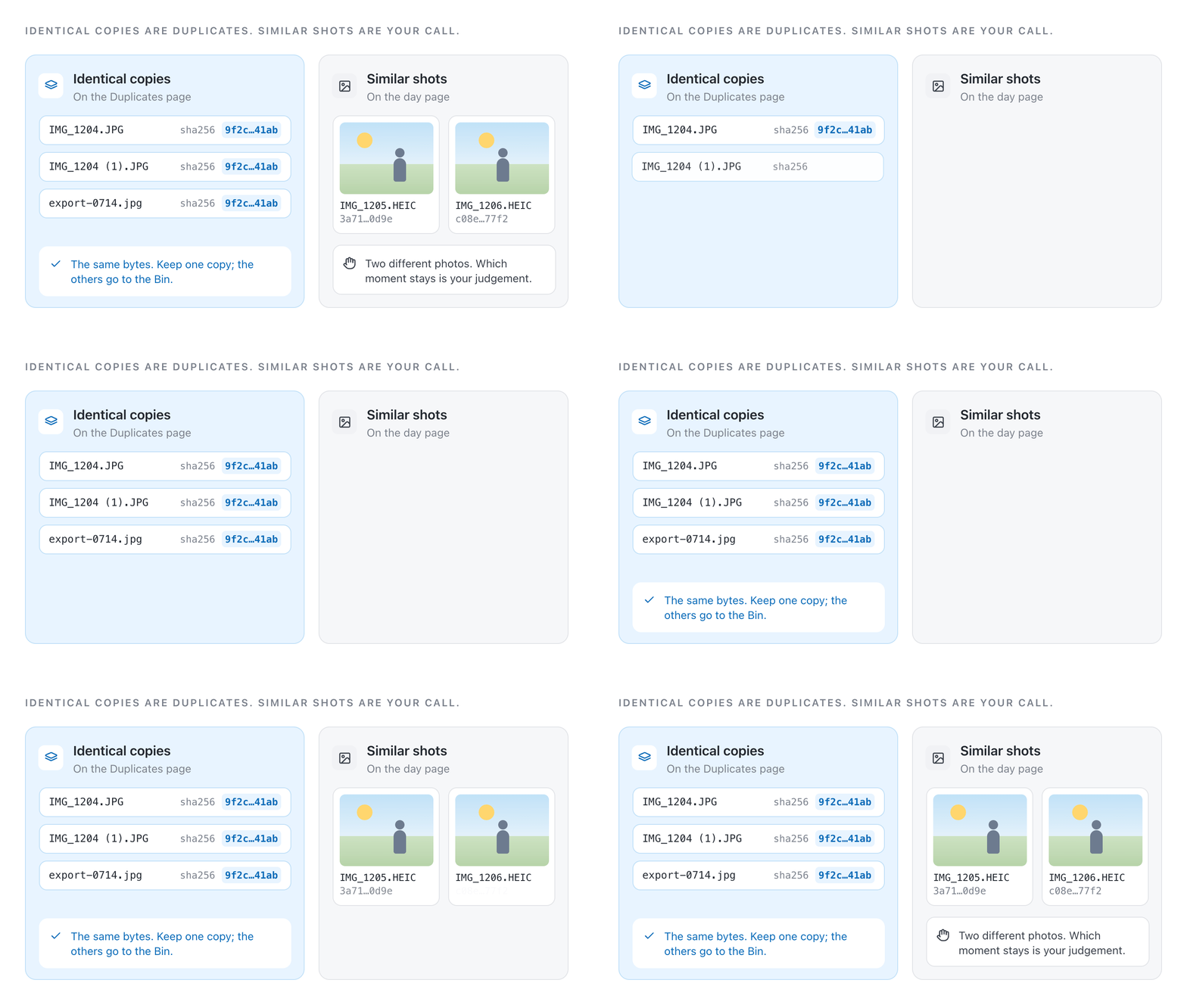
For exact duplicates, there is a separate view. It checks whether files are identical, then lets you choose which copy stays.
That distinction matters. Two similar photos of a child are still two different photos. Daddy, Cull! handles identical copies; I make the judgement about expressions, composition, and which moment I prefer.
New photos need a routine too
Working through the old archive only helps if new files arrive in an orderly way.
Daddy, Cull! has an Import folder for that. Camera files and phone exports go in, and the app files them into the library by the day they were taken. The structure stays simple: Year → Month → Day.
There are also ways to bring in files from iCloud Photos, Apple Photos on the Mac, and Google Takeout exports.
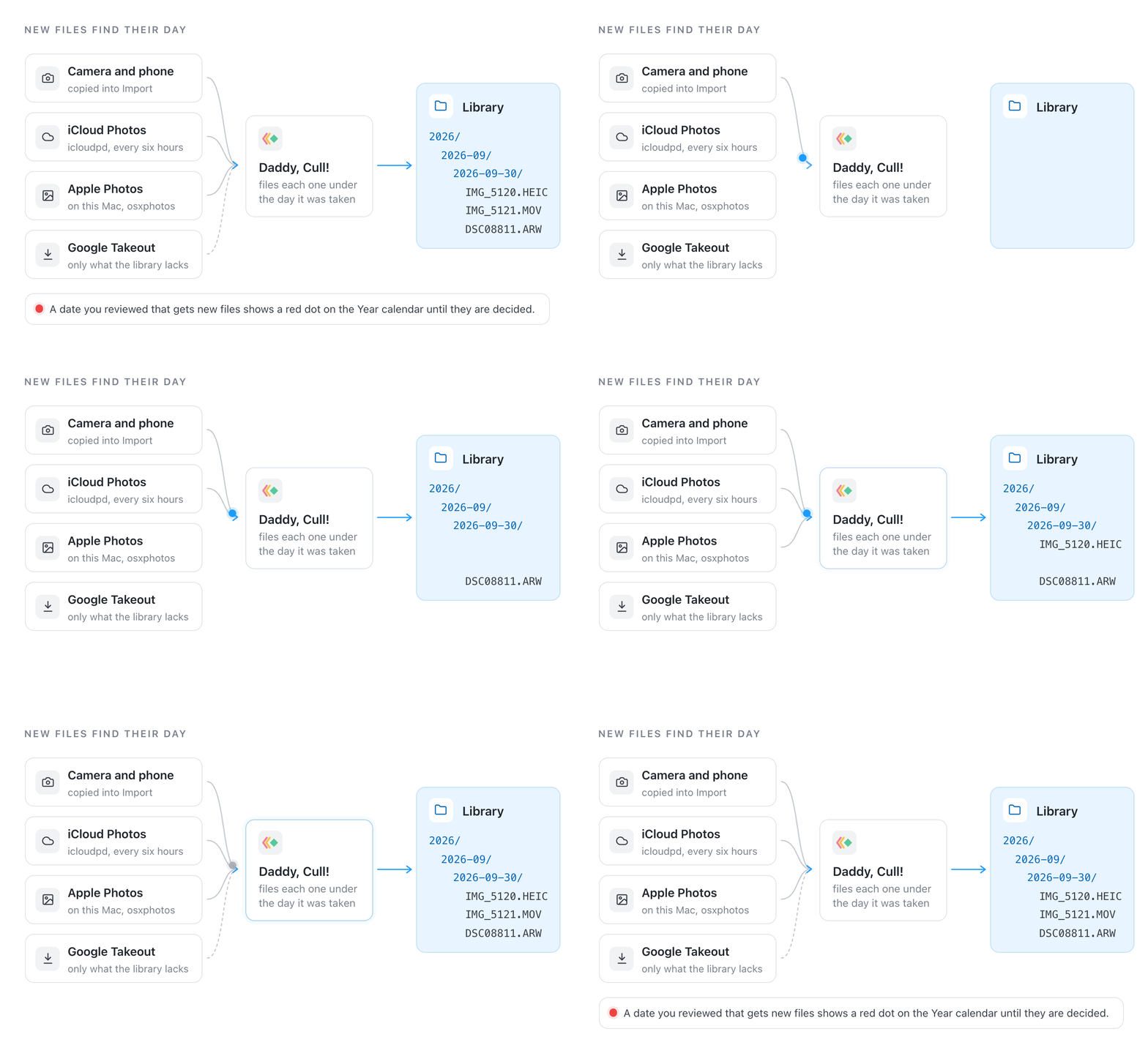
The aim is to make the next batch easier to deal with. Once the files are together and organised, they can go through the same review process as everything already in the archive.
If new files arrive on a date I have previously reviewed, that date is flagged again. “Reviewed” should mean there is nothing currently waiting for a decision.
Removing a photo needs a way back
A tool for clearing a family archive needs more than a fast delete button.
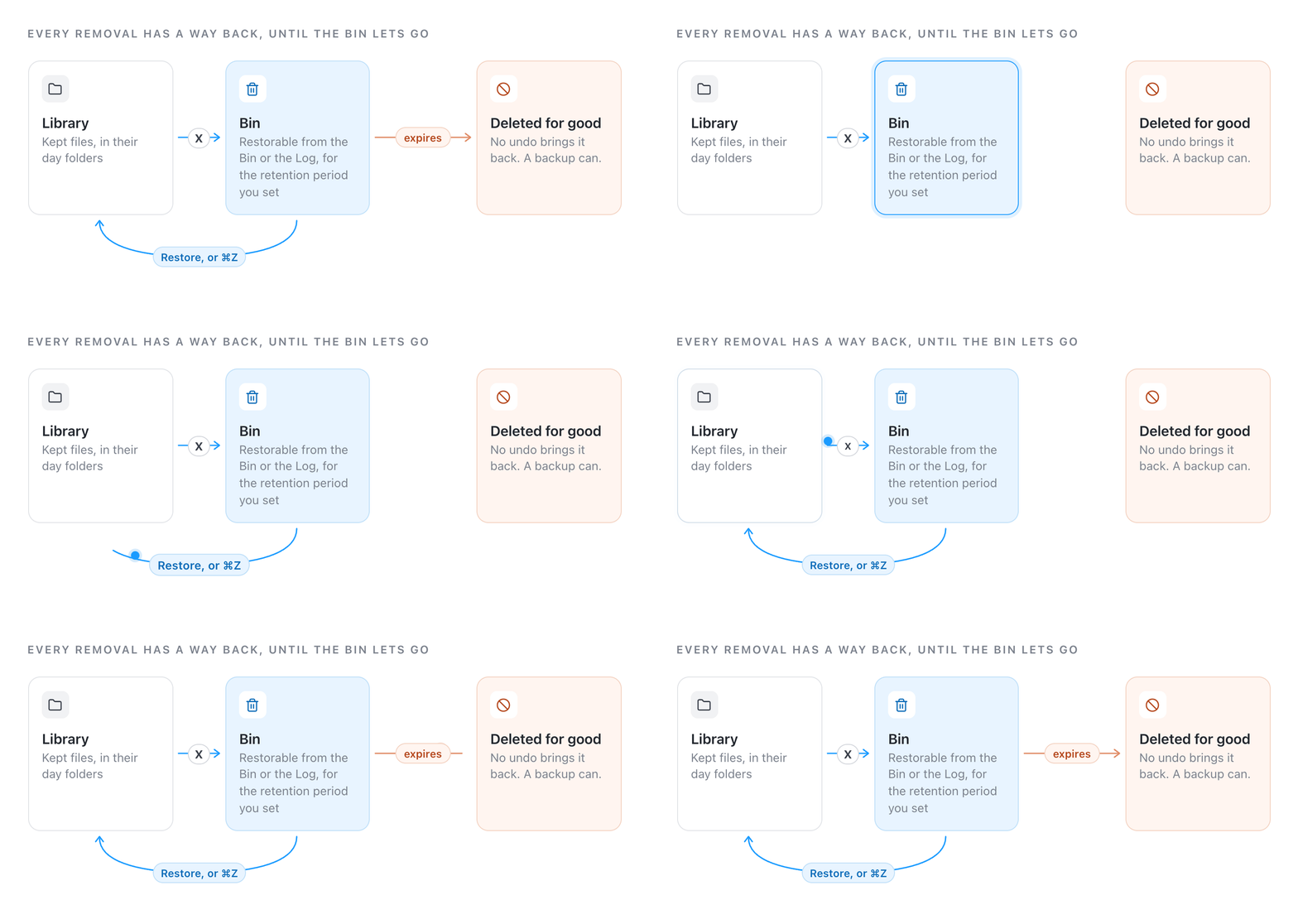
Removed files go to a Bin first. They can be restored while they remain within the retention period chosen in Settings. The decision log provides a record of what happened.
There is a limit to recovery, and it should be clear. Once a file has been permanently removed, an undo history cannot recreate it.
Apple Photos sync is optional and deliberate too. With Cull Sync, removals and favourites can be carried across to Apple Photos. Changes wait until you press Apply, macOS asks for confirmation, and removed photos go to Recently Deleted.
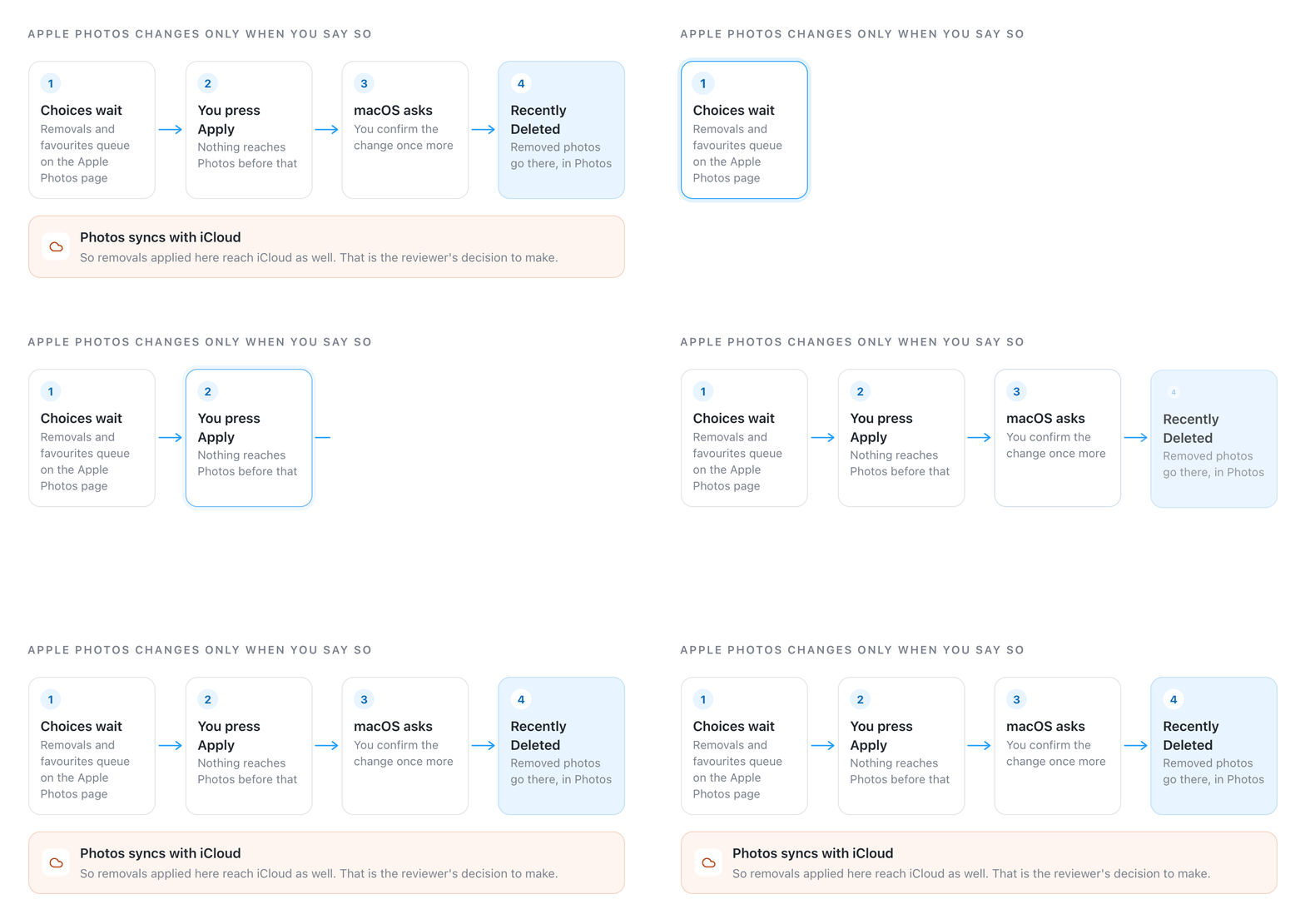
Because Apple Photos syncs with iCloud, those removals affect iCloud as well. That is a decision the person using the app should understand and control.
The archive stays independent
The library is still ordinary folders containing ordinary files. Daddy, Cull! gives me an interface for looking after them, while leaving them usable by other tools.
Photo editing can stay in Lightroom. Finder can browse the folders. Tools such as Immich or Jellyfin can use the same library.
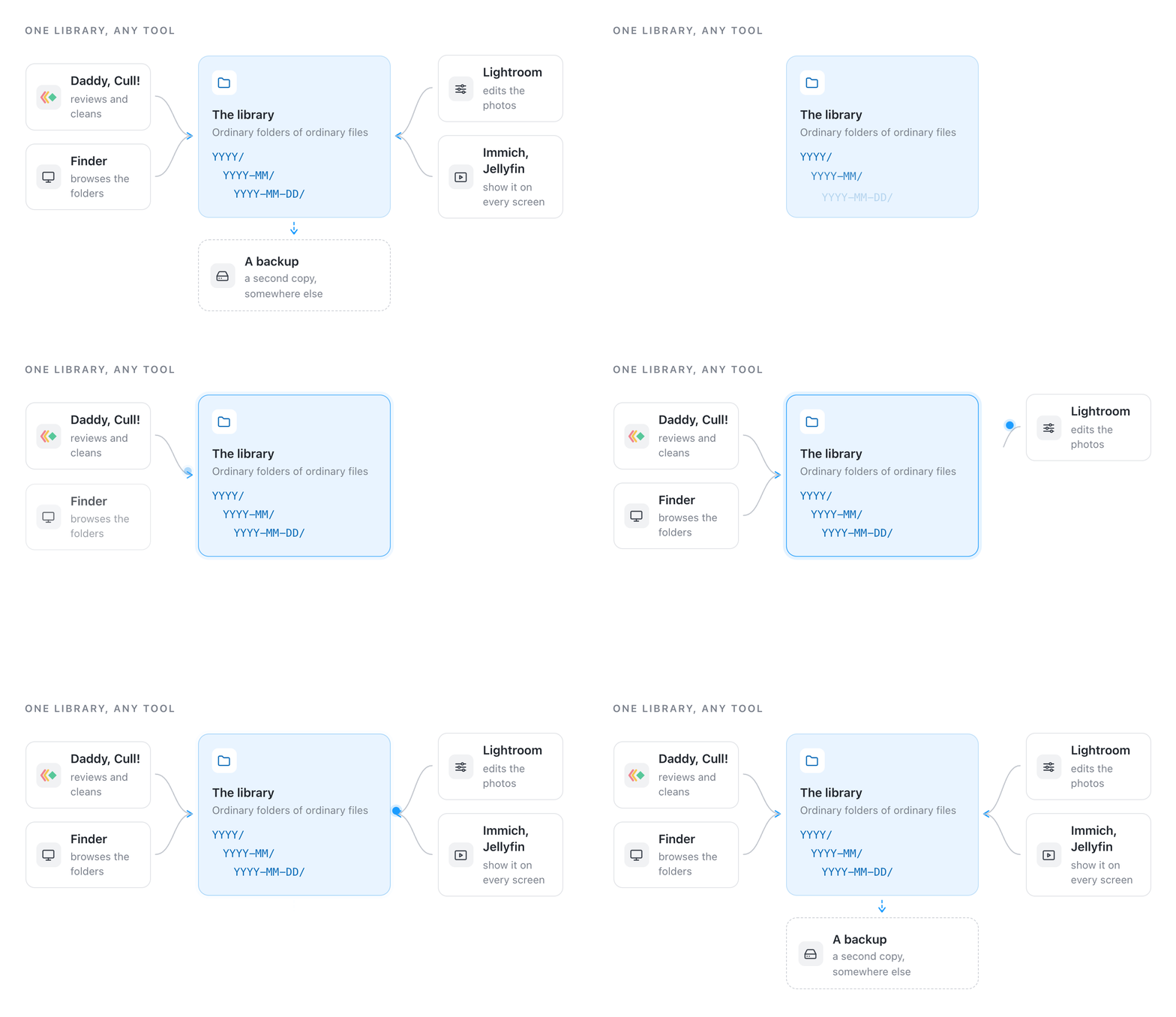
This was one of the requirements from the beginning: the archive should remain useful even if I stop using the app.
It also still needs a backup. Keeping files locally gives me control over a copy; protecting that copy means backing it up somewhere else.
From my workflow to a product
Daddy, Cull! started with the problems in our family archive. The product is for anyone facing the same combination: years of photos and videos, files spread across several places, and a clean-up that never quite gets finished.
It is free, open source, and currently in beta. It runs locally on macOS 14 or newer with a browser interface, and can also run on a server with Docker.
The first step was giving every file a place. Daddy, Cull! gives the archive a routine.
Newsletter
Get new posts by email
One email when something new goes up. Unsubscribe any time.
Discussion